How to Add a Family Member to Your Profile & Complete Their Risk Assessment
AUGUST 25, 2026
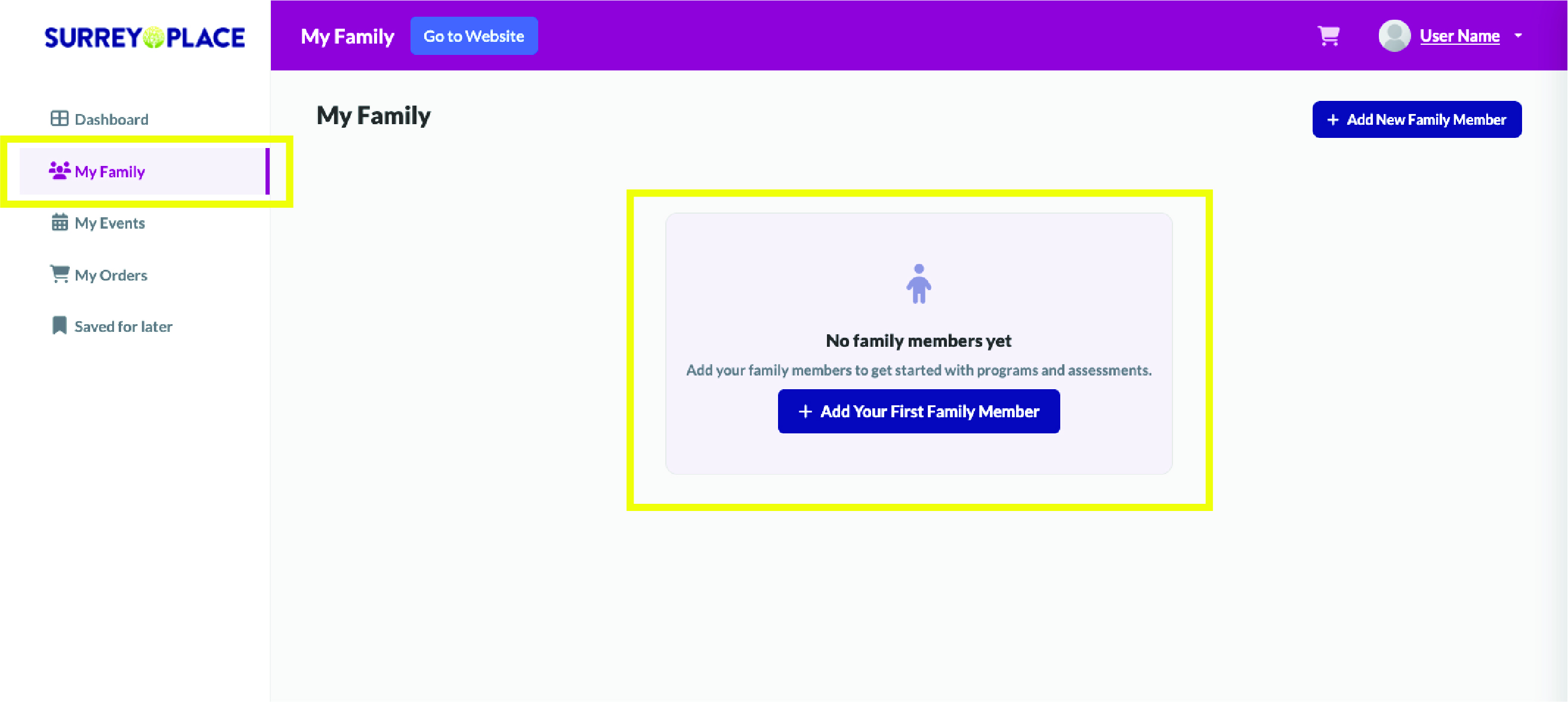
Step 1:
- Navigate to the “My Family “ Section, by clicking on the My Family tab found on the left hand menu and select, Add Your First Family Member.
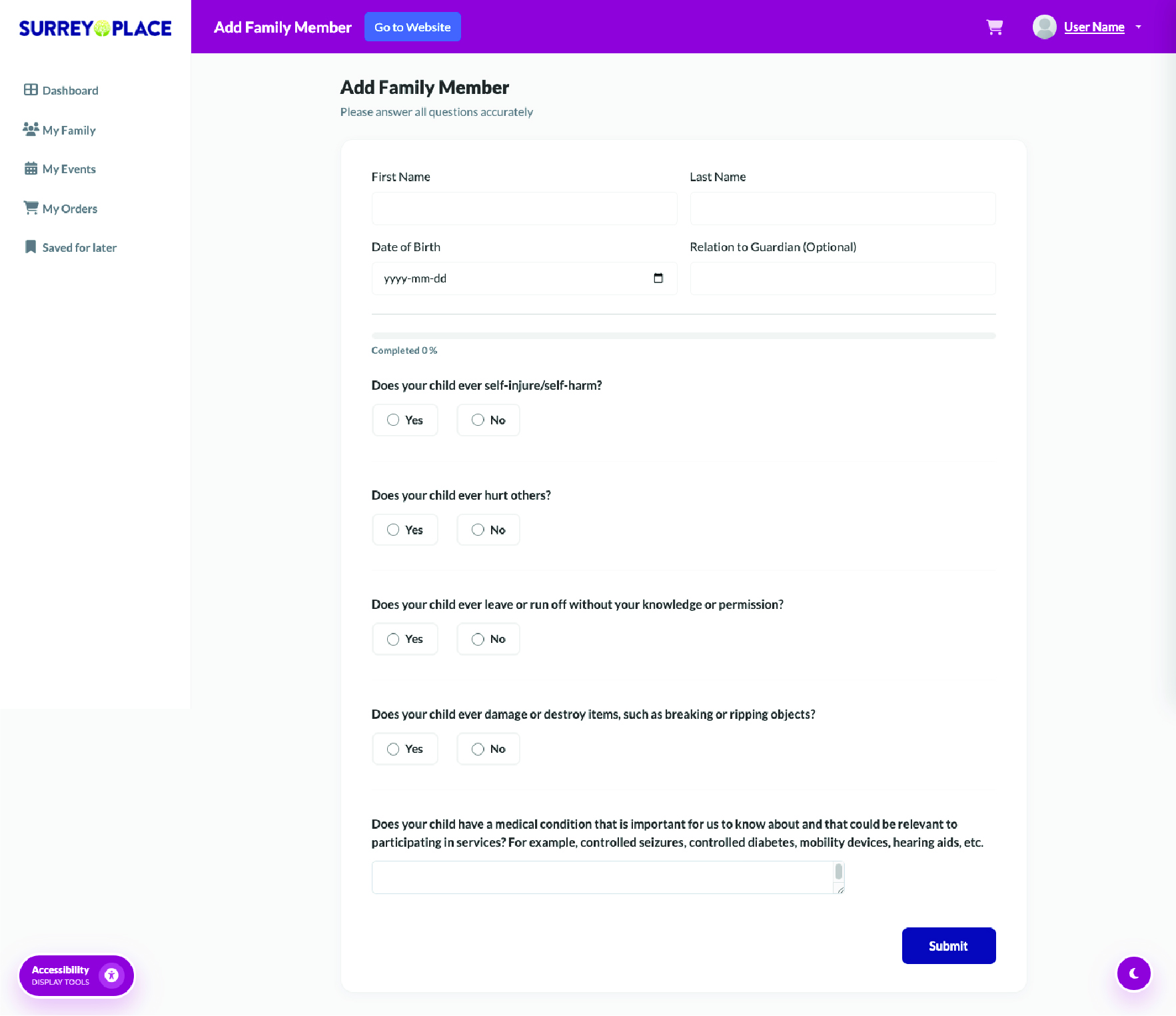
You will be prompted to complete a form.
It contains the following fields:
- First Name
- Last Name
- Date of Birth
- Relation to Guardian
- Risk Assessment Questions
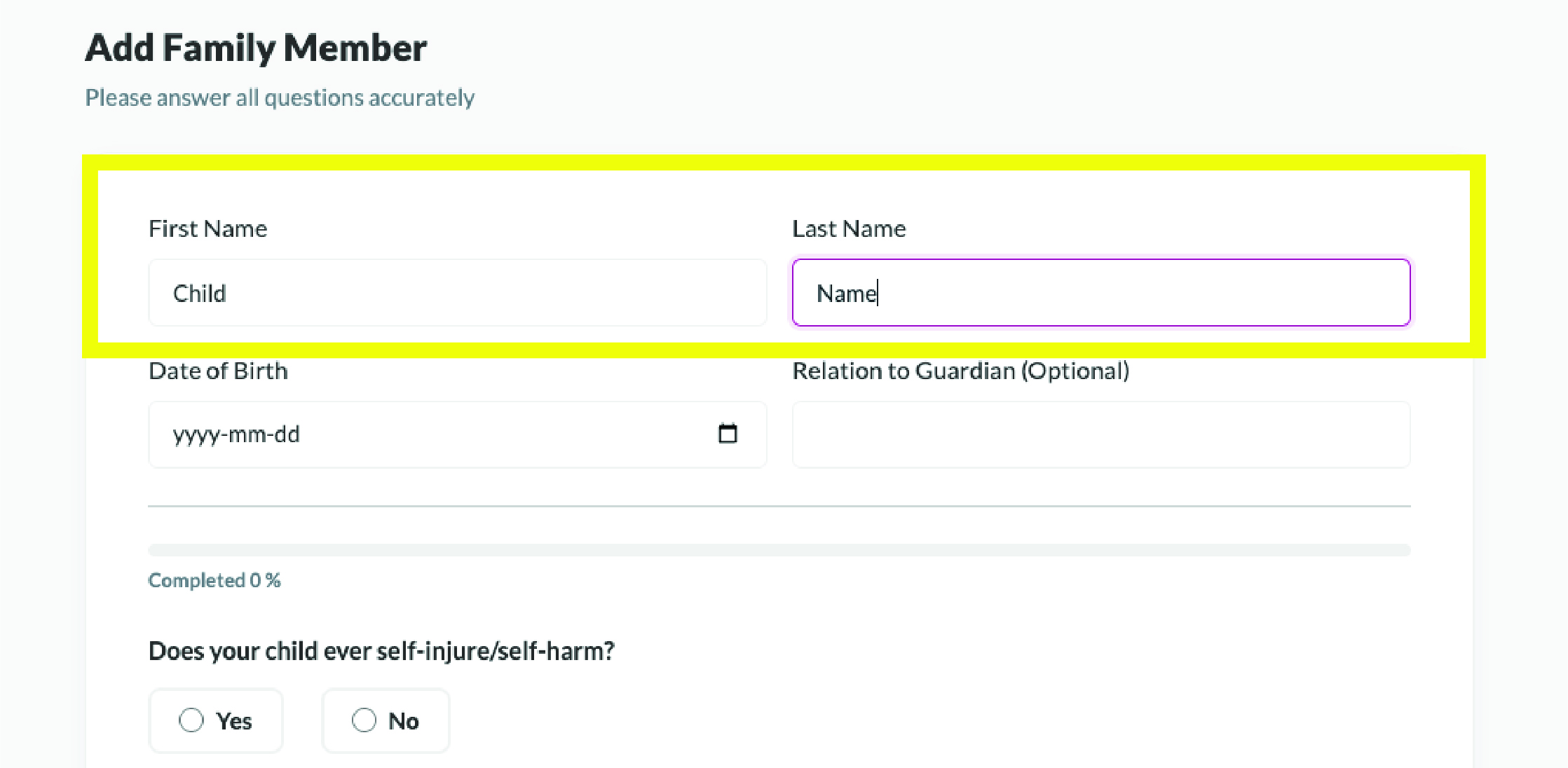
Step 2:
- Enter the first name of the your family member in the First Name field.
- Enter the last name of your family member in the Last Name field (even if it is the same as your last name).
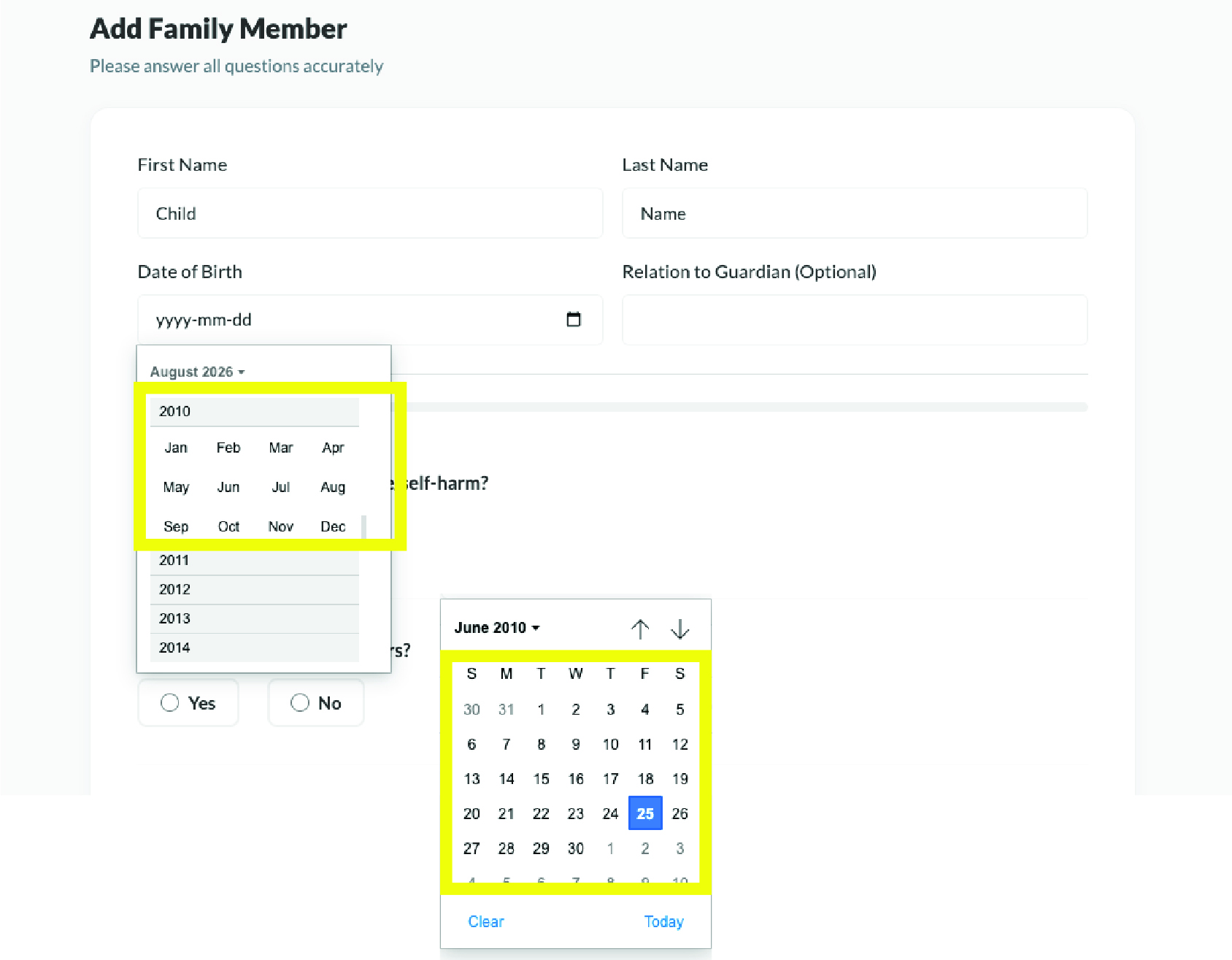
Step 3:
- Enter their date of birth starting with selecting the year.
- Then select the month.
- Then select the day
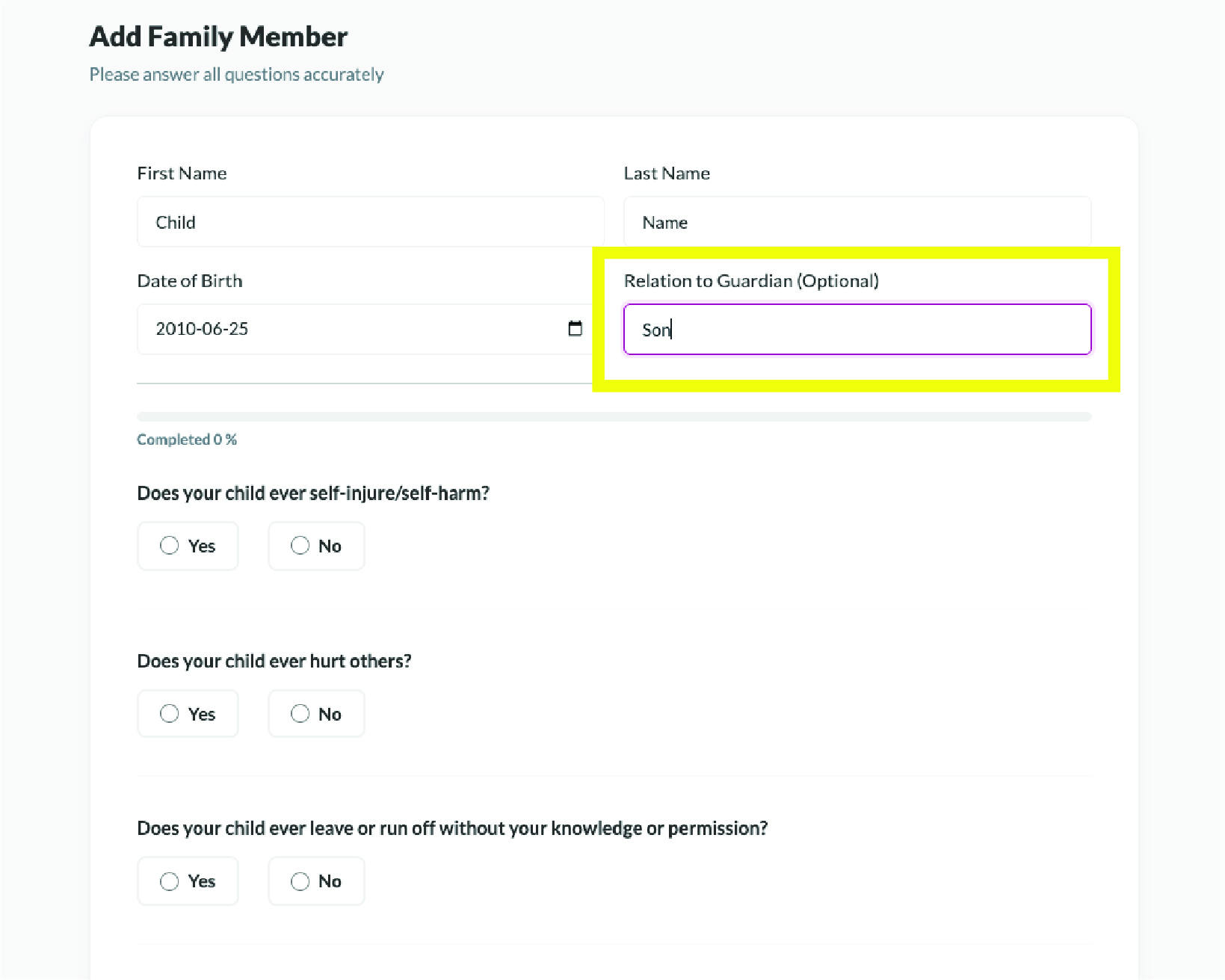
Step 4:
- Enter your relation to the family member you are adding in the Relation to Guardian field.
- Some examples might be son, daughter, brother, sister, etc.
* This field is optional.
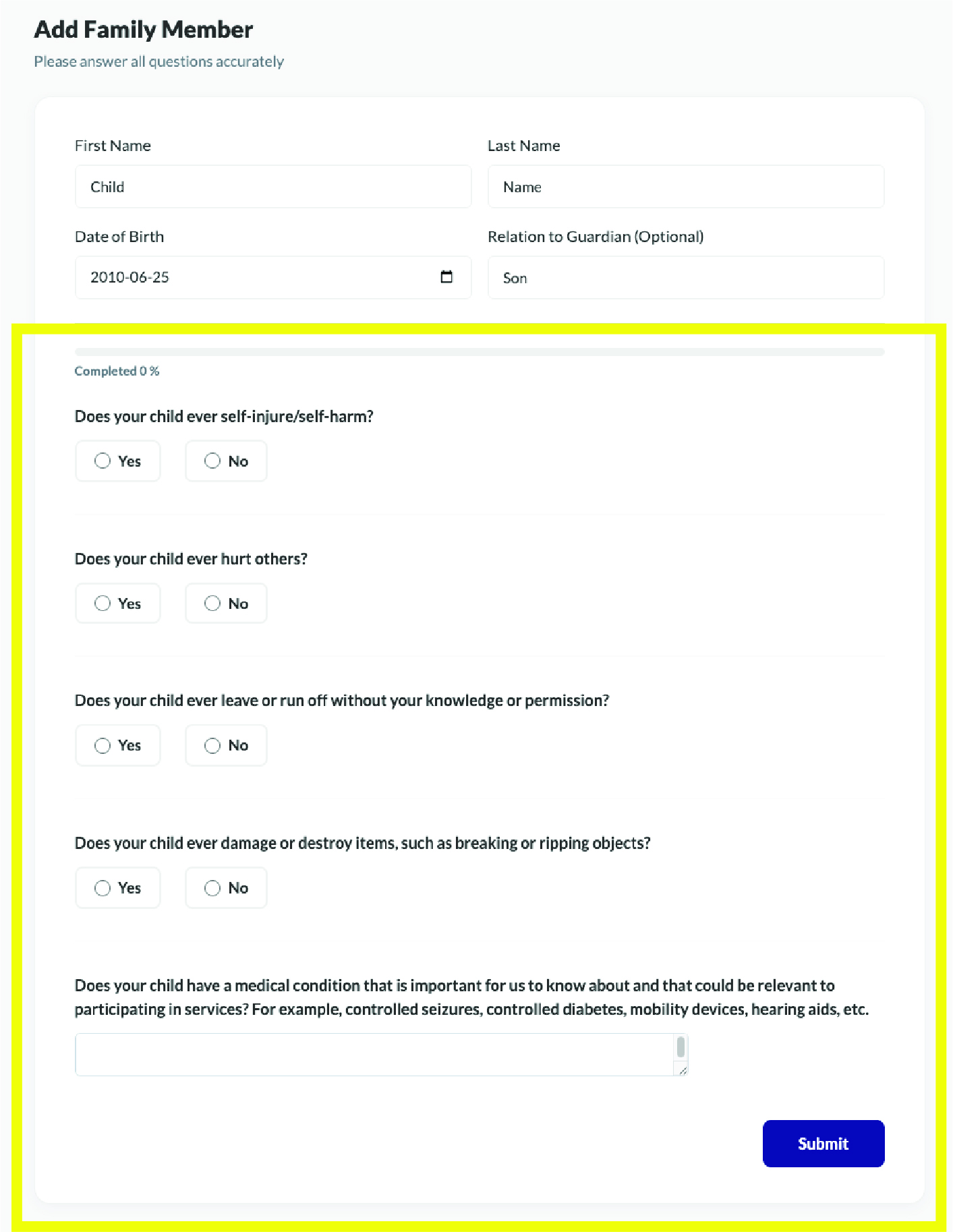
Continue by answering the following five Risk Assessment questions:
- Does your child ever self-injure/self-harm?
- Does your child ever hurt others?
- Does your child ever leave or run off without your knowledge or permission?
- Does your child ever damage or destroy items, such as breaking or ripping objects?
- Does your child have a medical condition that is important for usto know about and that could be relevant to participating in services?
Please Note: The Risk Assessment is internal information and will not be displayed publicly.
Step 5:
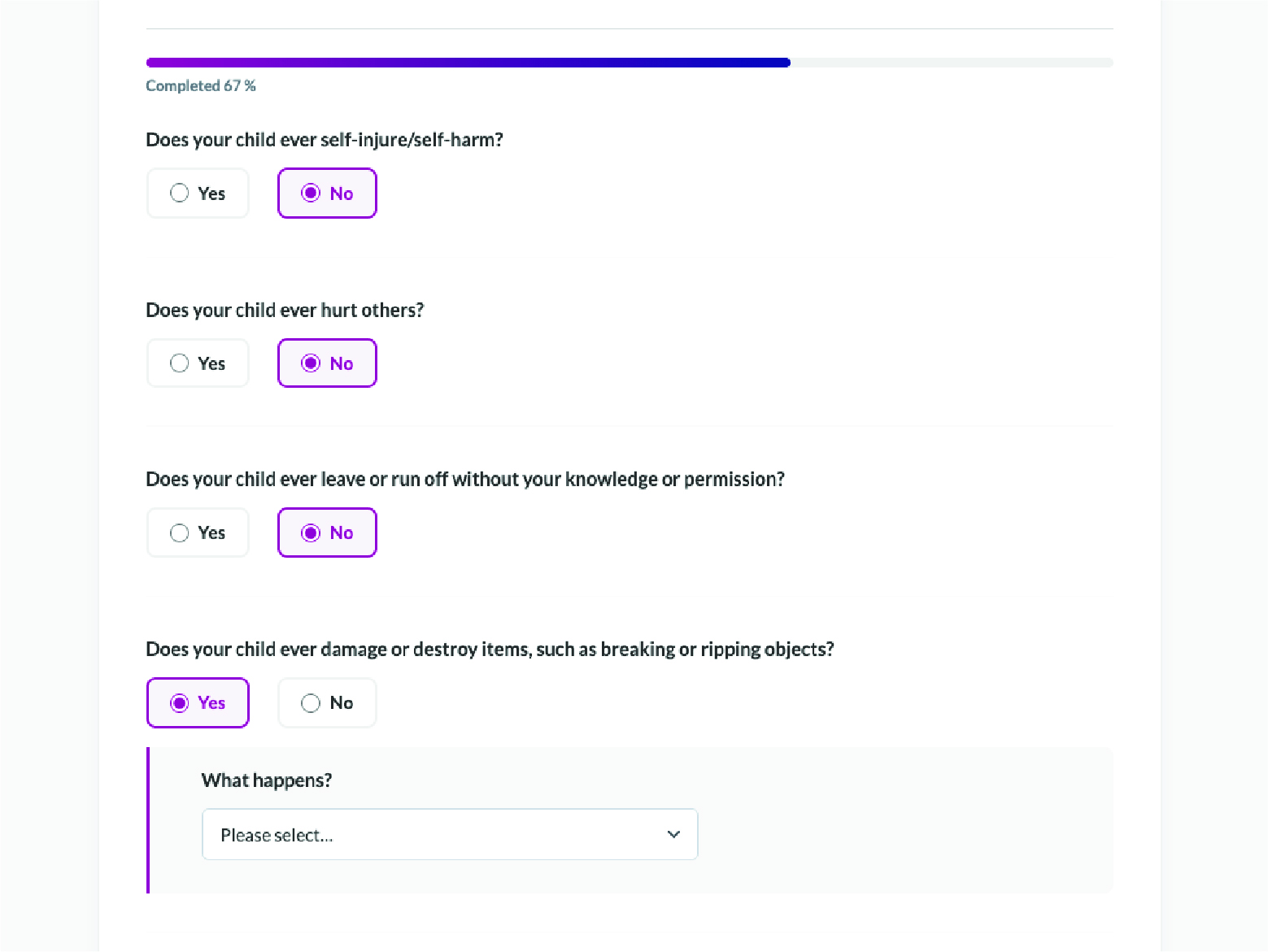
- Answer the first four questions by selecting either Yes or No.
- If you select Yes, you will need to answer additional questions.
- No additional action is needed when selecting No.
Step 6:
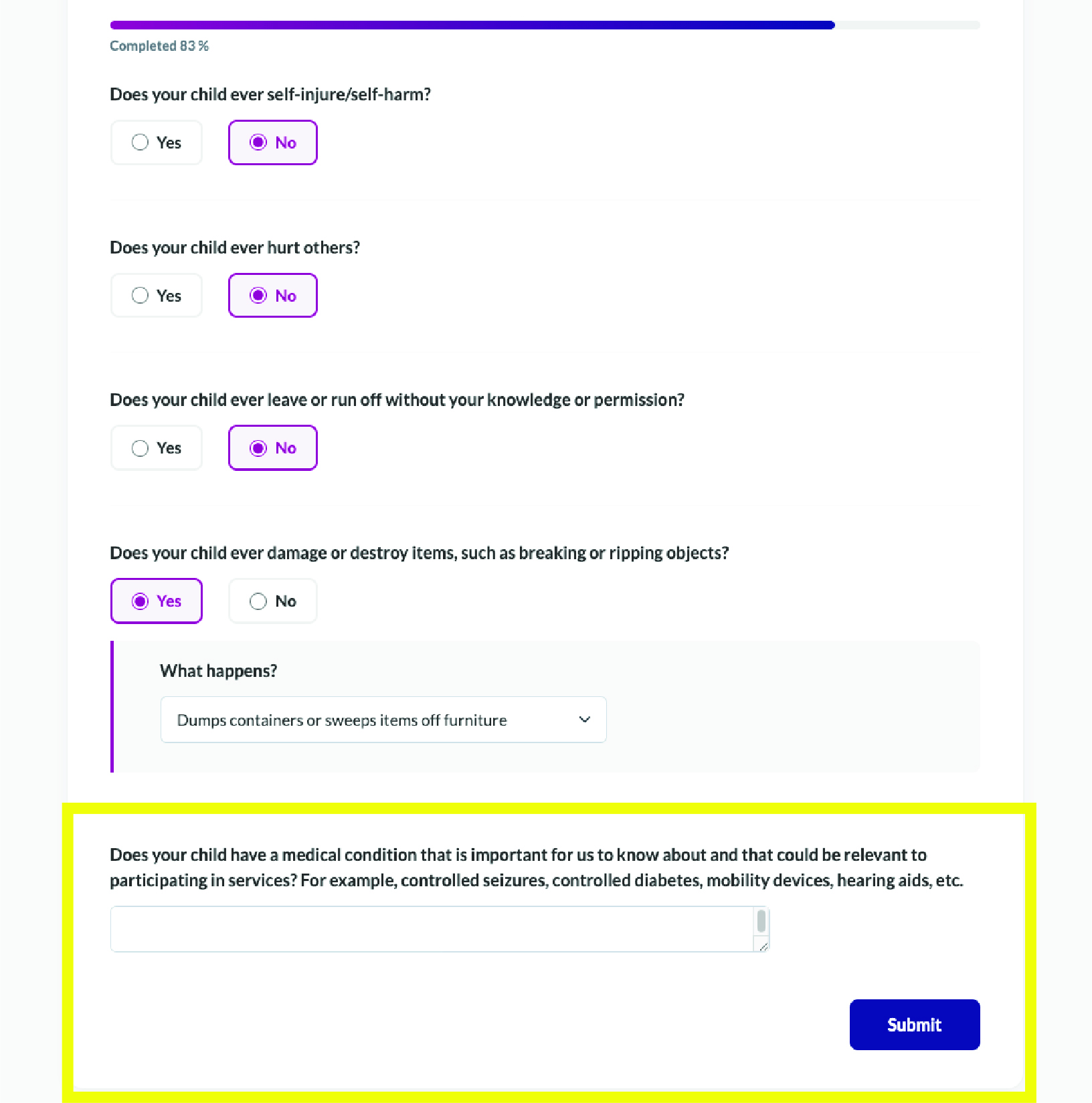
- Answer the last question to the best of your ability if it is relevant information to your family member.
- Leave this field blank if the information is not relevant.
- Once complete, select Submit Assessment.
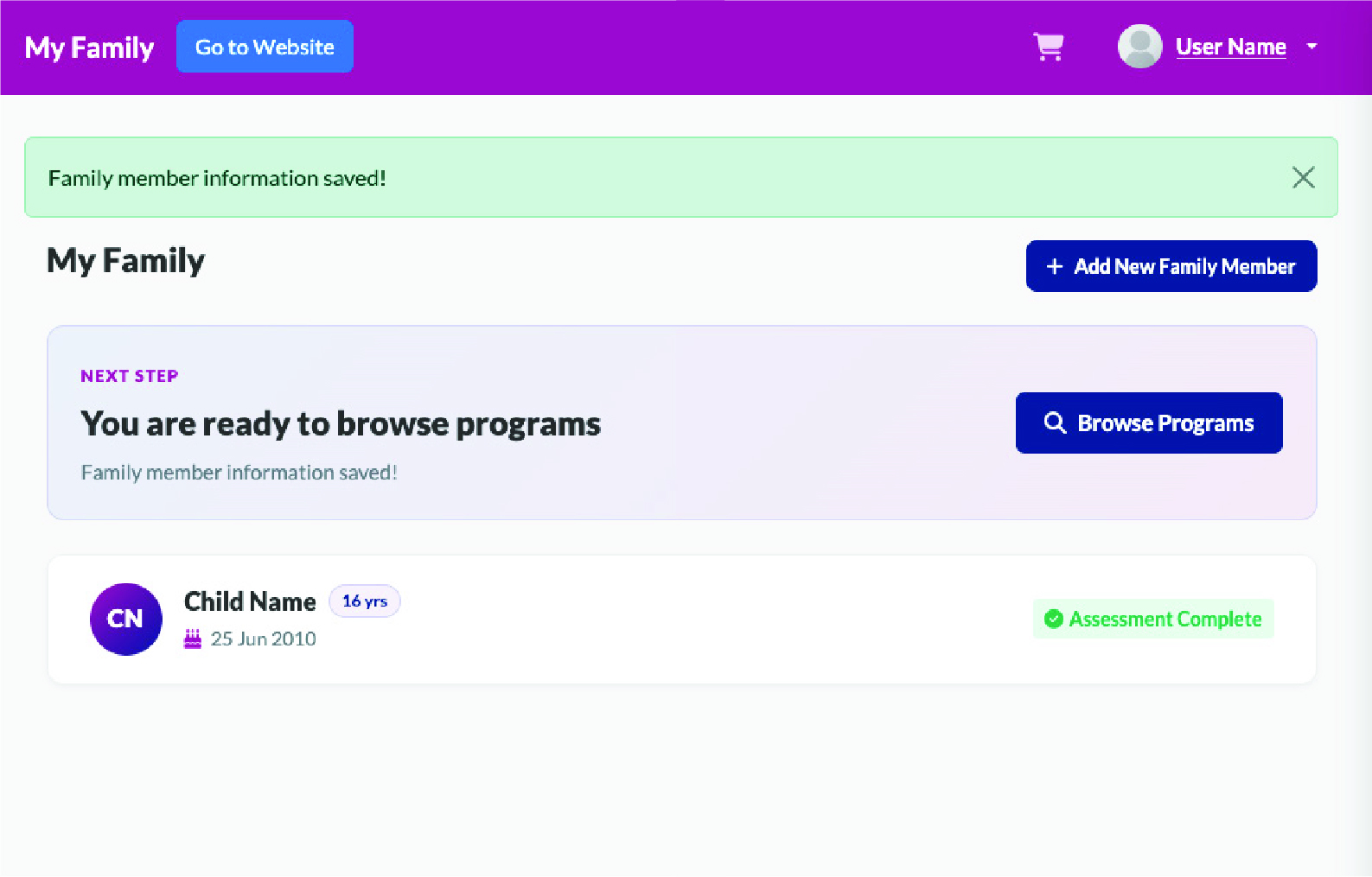
Once Submitted, the system will save the info and mark your assessment as complete.
You will now see the new user in the My Family tab.
Next Steps:
- You are now ready to start registering for services.
- If have another person to register, select Add Another Family Member.

 Invert Colors
 Dark Contrast
 Low Saturation
 Highlight Links
 Text Spacing
 Text Size
 Readable Font
 Reading Cursor
 Line Height
 Text Alignment
 Align Left
 Align Center
 Justify Text