How to Use the Profile Section
AUGUST 25, 2026
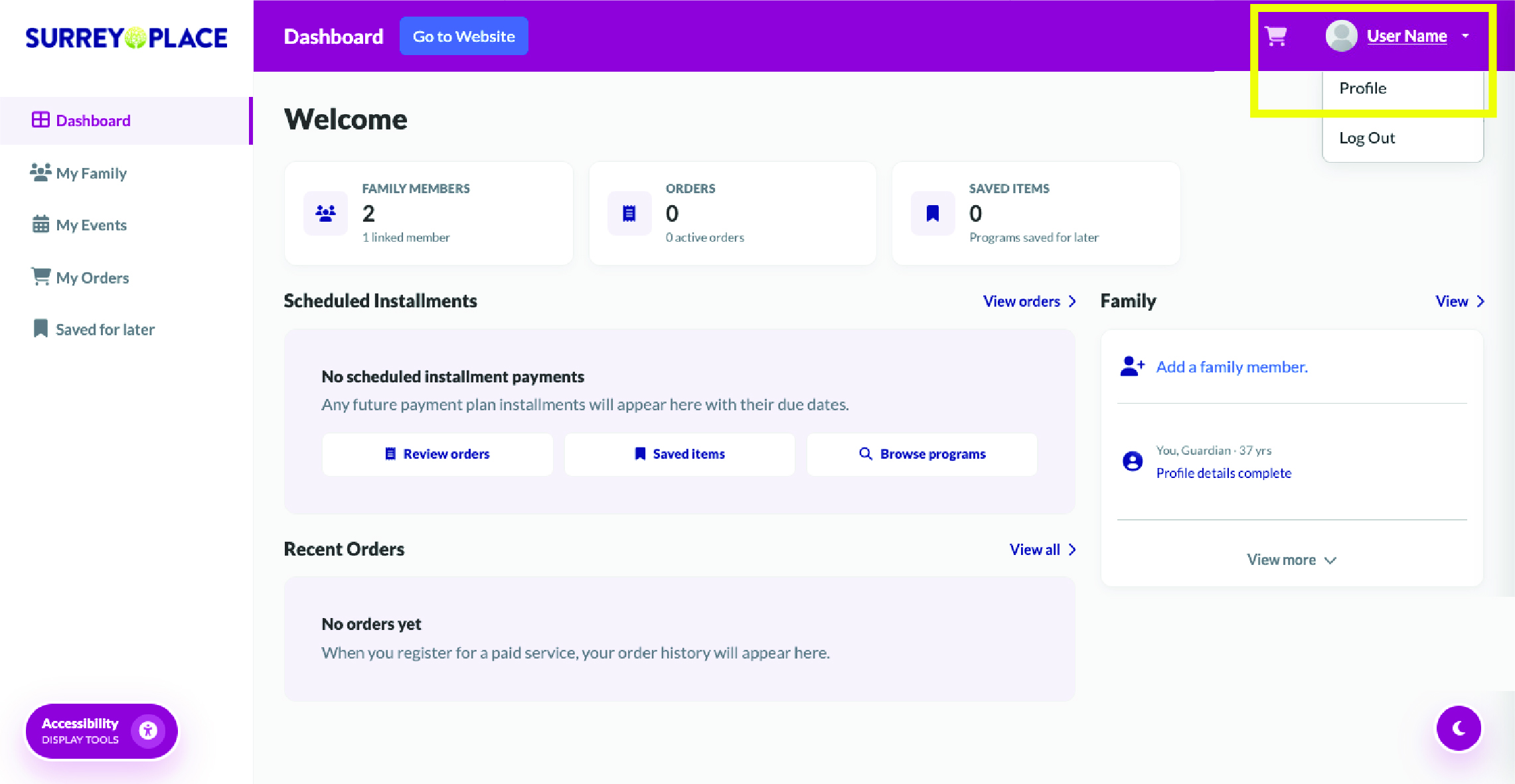
Step 1:
- To access the Profile section, click on your name located at the top-right hand side of the screen and select Profile.
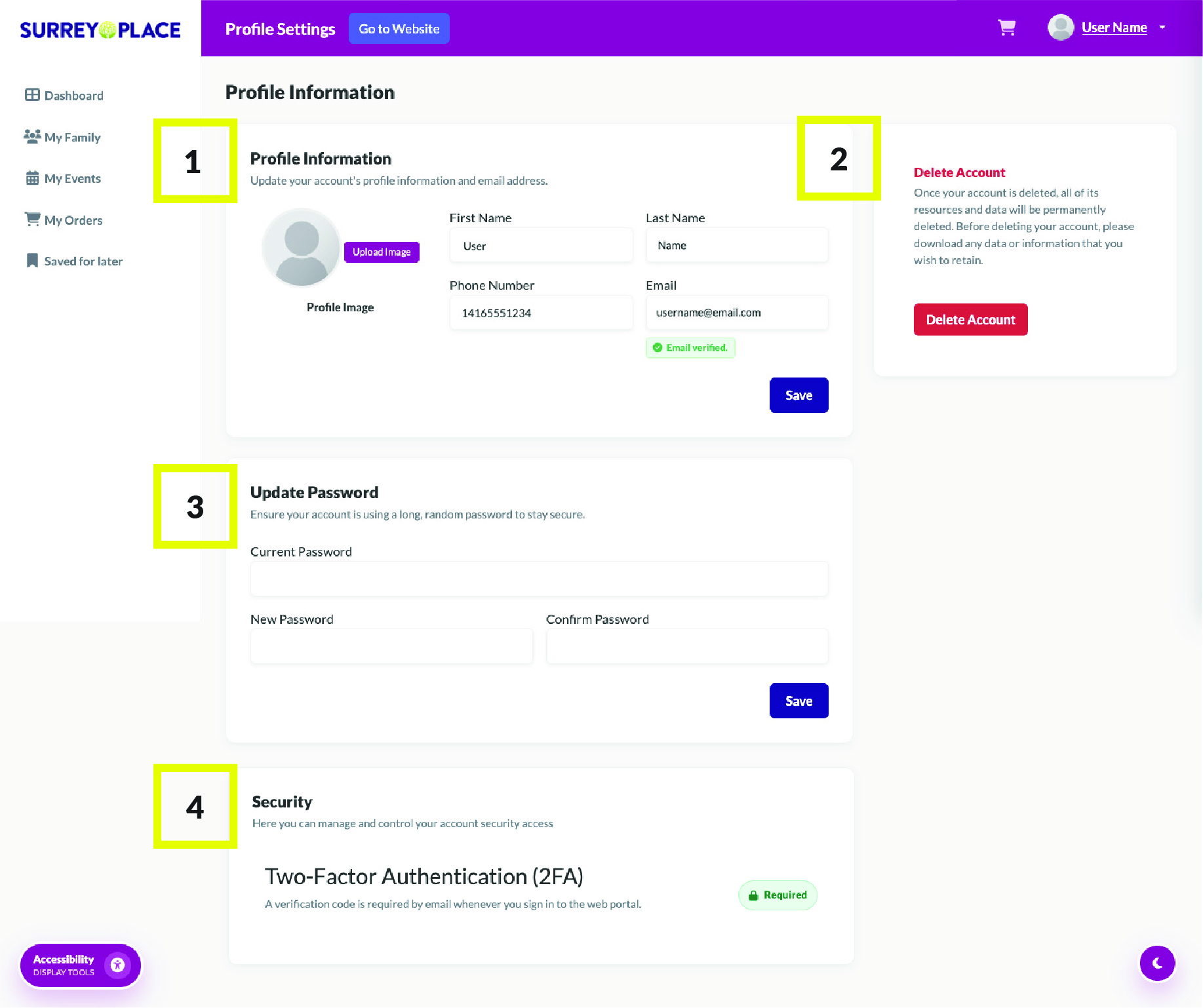
Step 2:
You will be redirected to the My Profile page.
It contains the following sections:
Profile Information
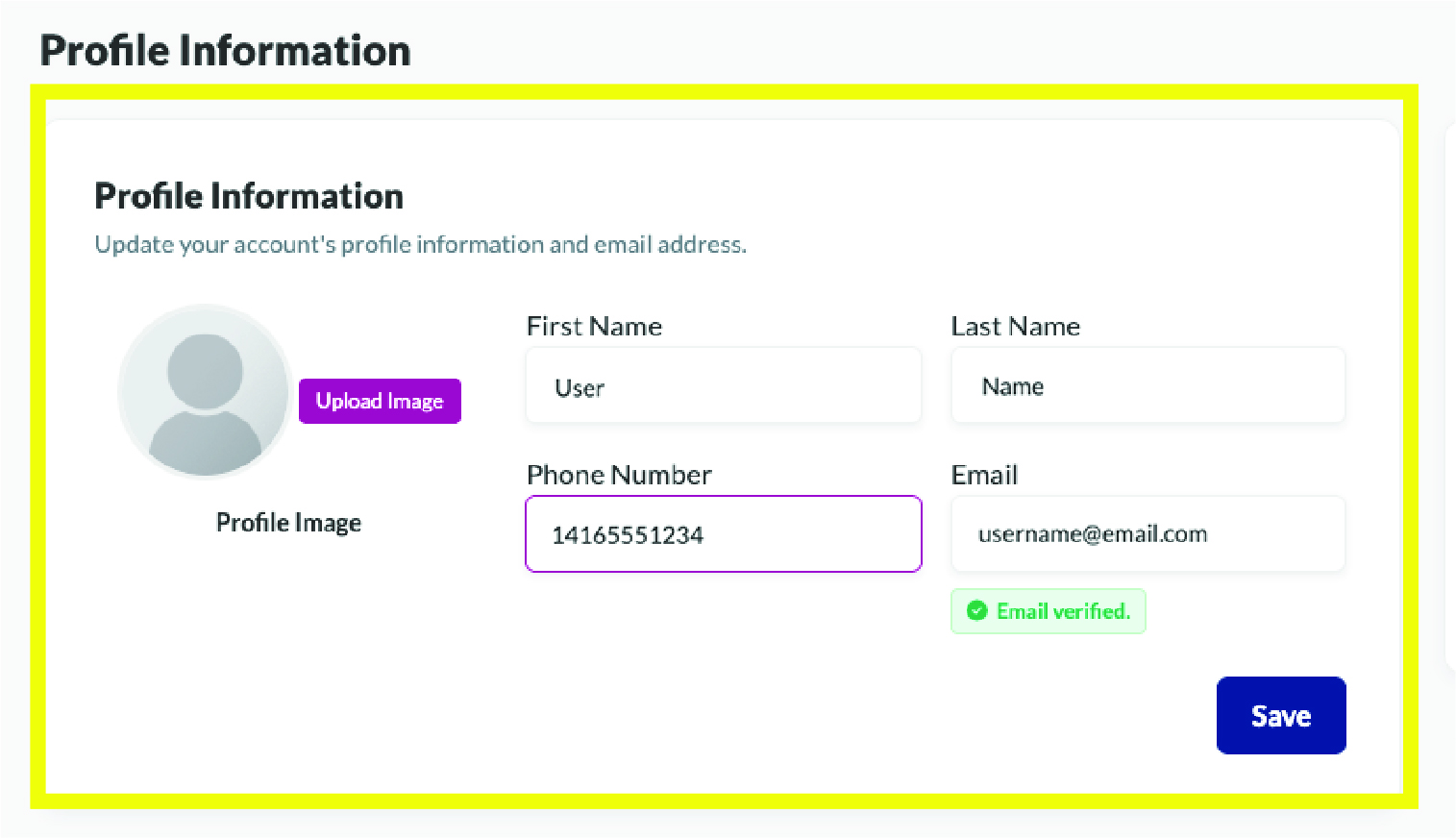
You can update your personal details in the Profile Information section.
- To fill out each field, click and type.
- Once you have completed your edits, click Save.
* If you do not wish to save the changes made, exit without saving.
Delete Account
Caution: This cannot be undone
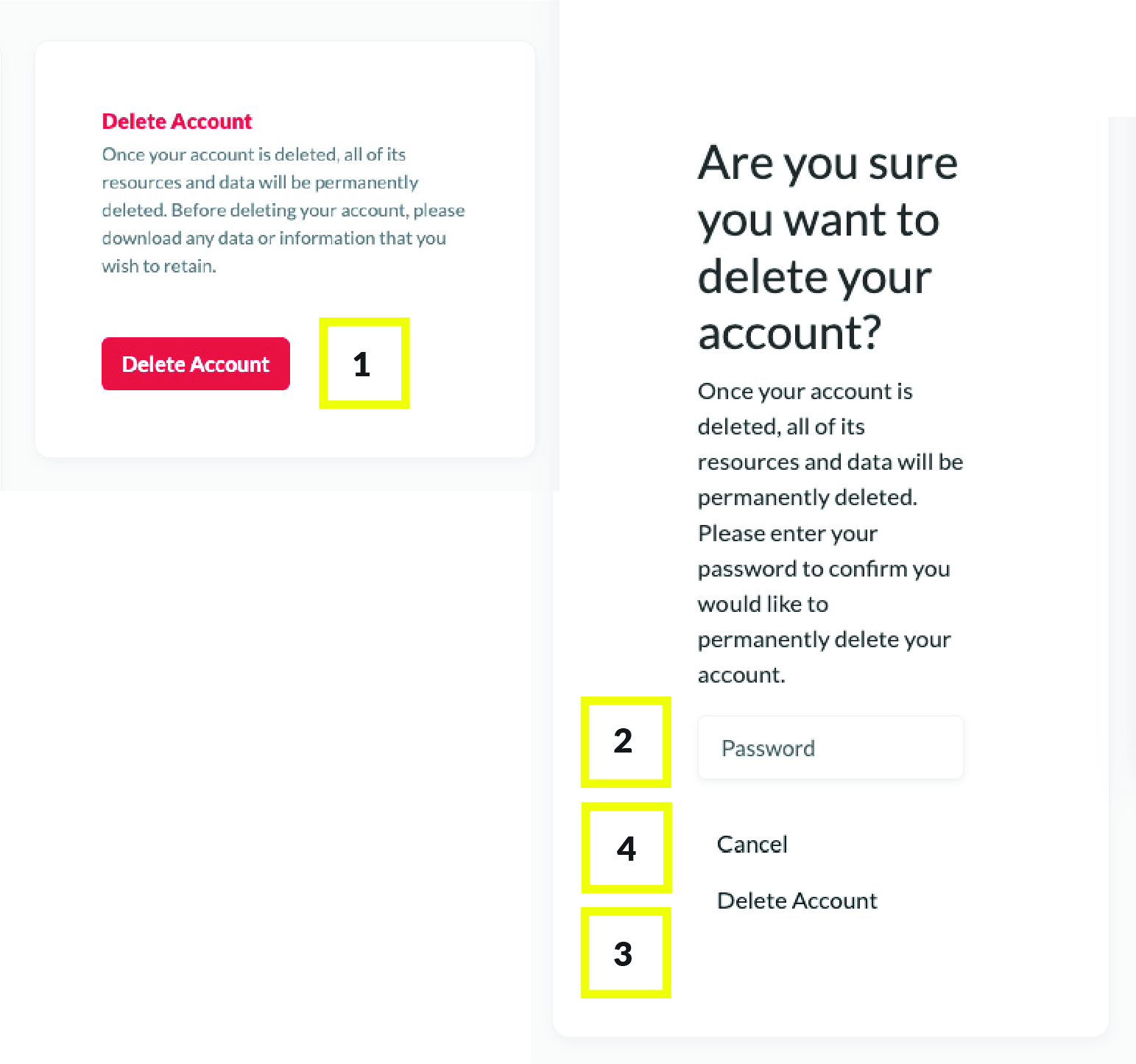
You can delete your account using the Delete Account button.
To delete your account:
- Select Delete Account.
A warning message will appear. - Enter your password.
- Then select Delete Account.
- If you do not wish to delete your account, click Cancel.
Update Password
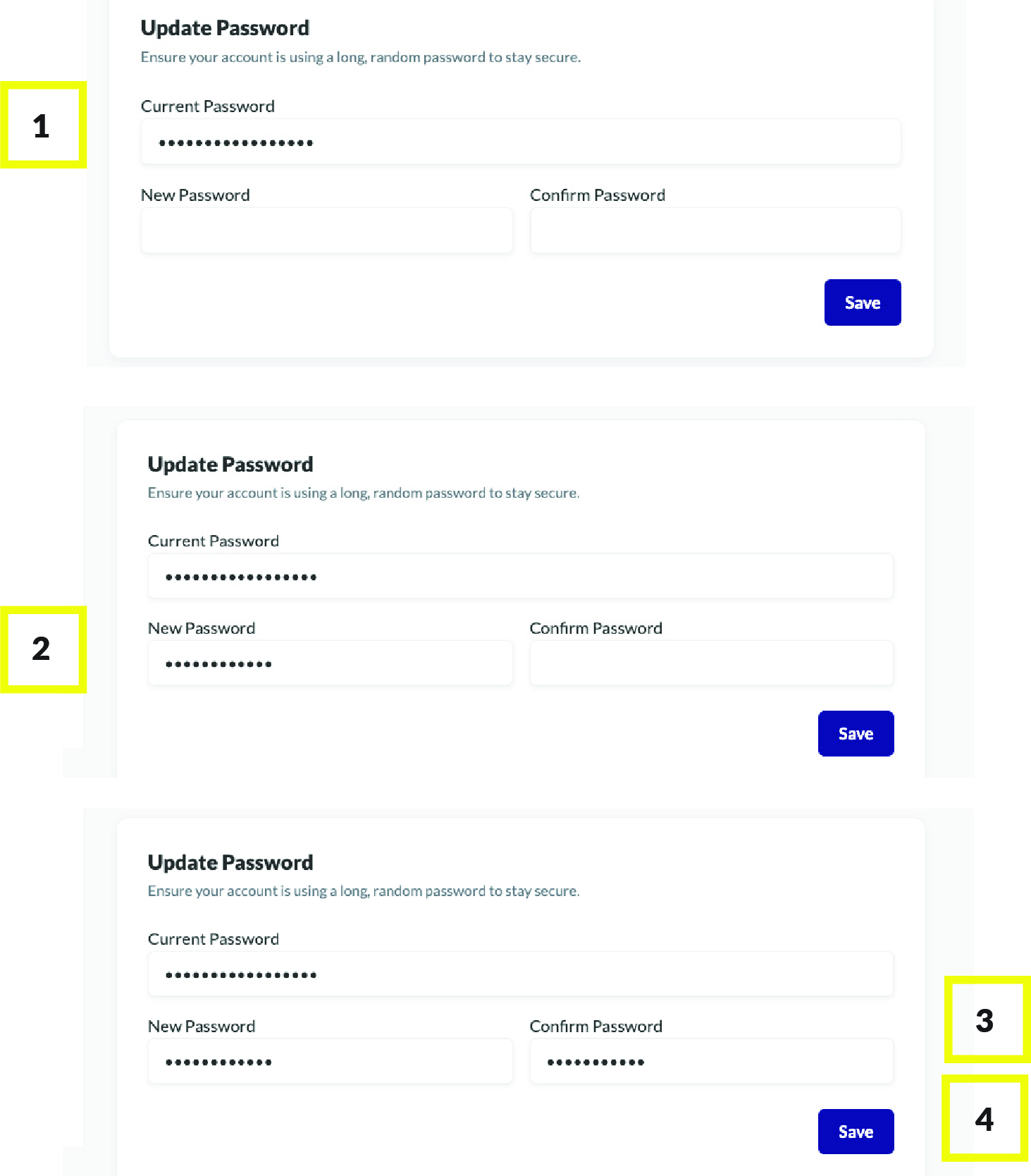
You can update your password at any time.
Steps to Update Password: - Start by entering your current password.
- Enter a New Password.
- Confirm the password by typing it in again.
- To permanently change your password, click Save.
If you do not wish to change your account, exit without saving.
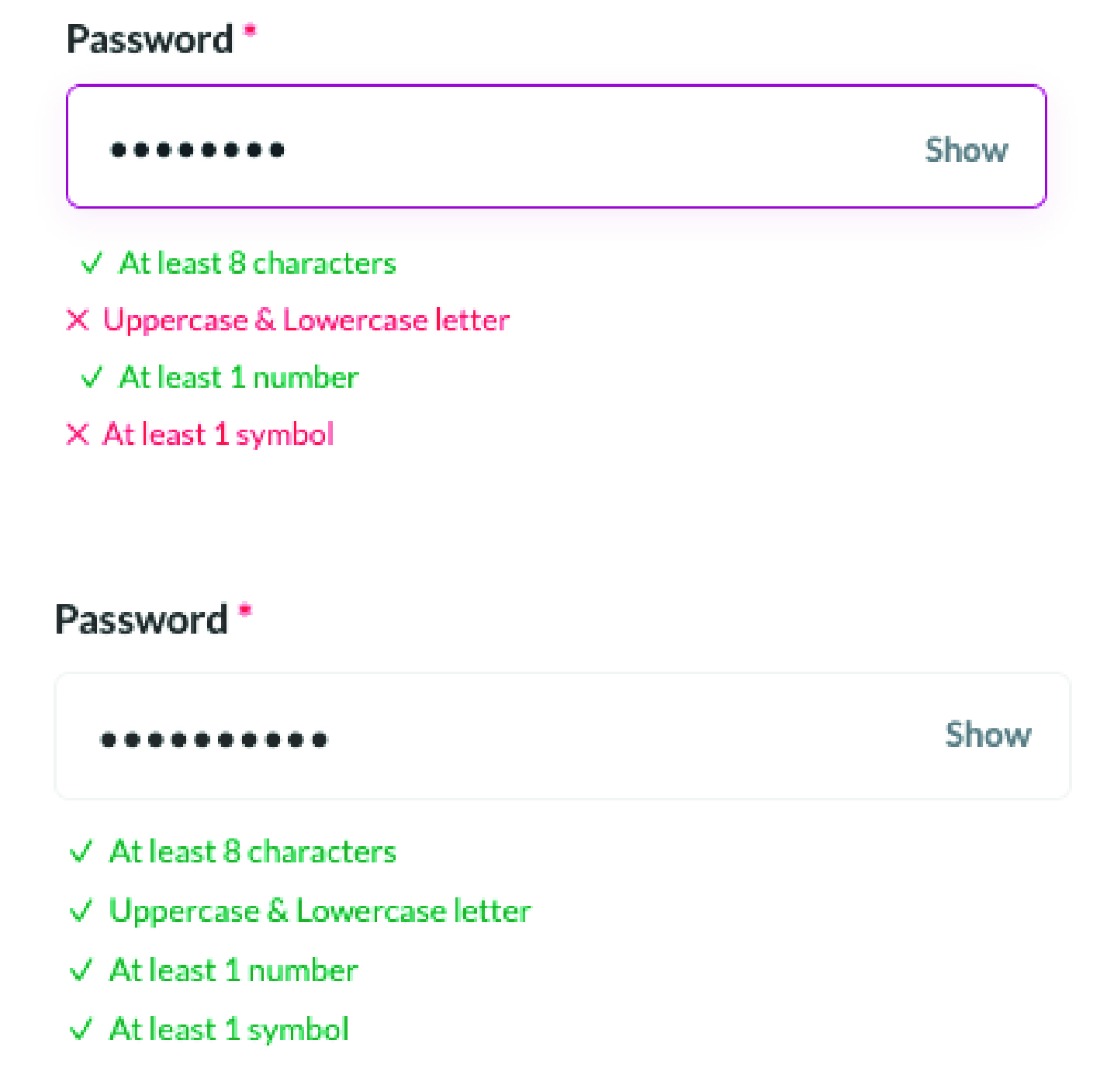
Helpful Reminder:
A password must have the following:
- At least 8 characters
- Uppercase and Lowercase letters
- At least 1 number
- At least 1 symbol
When all 4 requirements are metyou will see all ✔
Security - 2FA
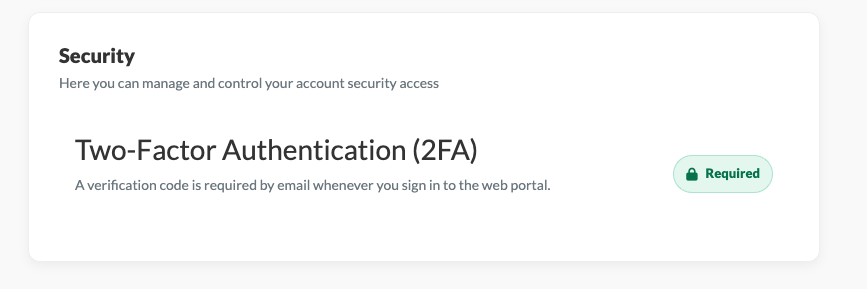
In the Security section, you will see that Two-Factor Authentication (2FA) is a required security feature.
What is Two-Factor Authentication (2FA)?
2FA is an extra layer of security that requires you to verify your identity using a second method, such as a code sent to your email, in addition to your password.

 Invert Colors
 Dark Contrast
 Low Saturation
 Highlight Links
 Text Spacing
 Text Size
 Readable Font
 Reading Cursor
 Line Height
 Text Alignment
 Align Left
 Align Center
 Justify Text